Configuration using Aruba Central
Required Hardware and Software
-
Aruba AP: Aruba AP with USB port.
Check the energy requirements of our Aruba AP to properly operate the USB port.
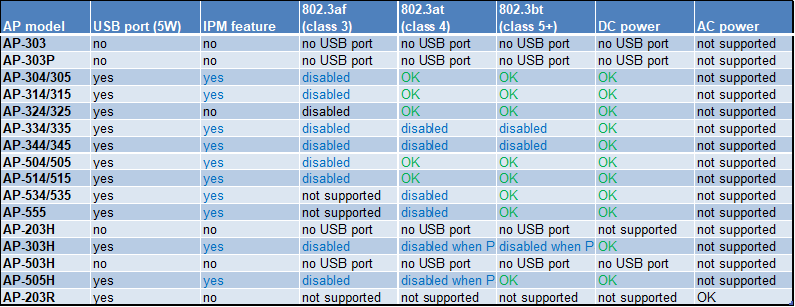
-
Aruba OS: version 10.x
-
EnOcean USB Stick: USB 300, USB 300U, USB 500 or USB 500U
Step 1: Connect to Aruba Central
Log into the web-based management page for Aruba Central.
Step 2: Install Collector
- Under Organization click Platform Integration then Data Collectors.

- Under the section Configure Appliance click Download Virtual Appliance (Small or Medium appliance recommended).
- Follow the collector installation guide from Aruba.
- Get registration token under Registration Token.
- Click on Create collector and follow the steps required for the connection.

Step 3: Configure Collector
- Under Applications click on IoT Operations then Connectors.

- Select your connector then click on View under Installed Applications

Step 4: Install EnOcean App
- To enable the USB dongle on the Aruba access points under AOS 10.x, you will need to install the EnOcean App.

Step 5: Install AOS8 App
- AOS8 App is needed to enable data transfer to EnOcean Cloud.

Step 6: Configure AOS8 App
- Configure the AOS8 App to send the data to EnOcean Cloud.


Step 4: Verify that your Gateway is connected
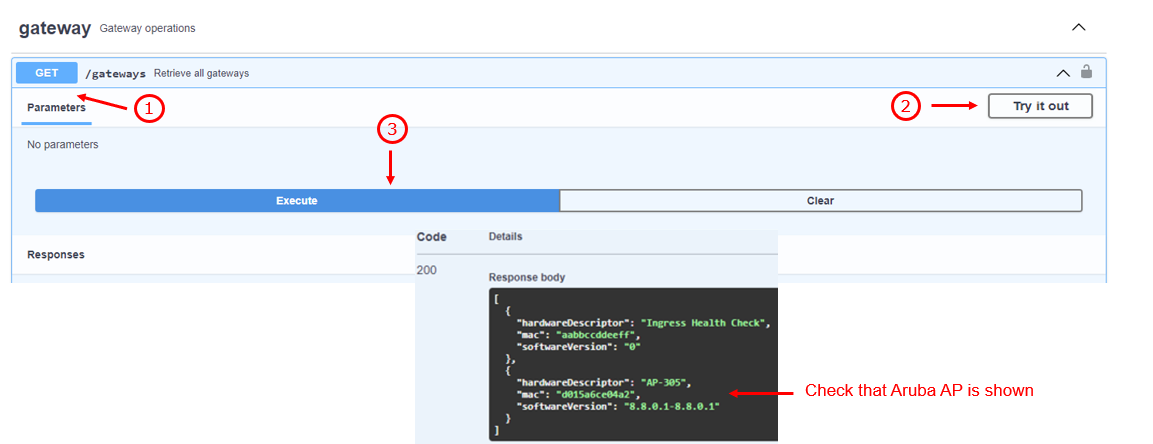
Login to EnOcean IoT Connector and check gateway status using GET/gateways API